
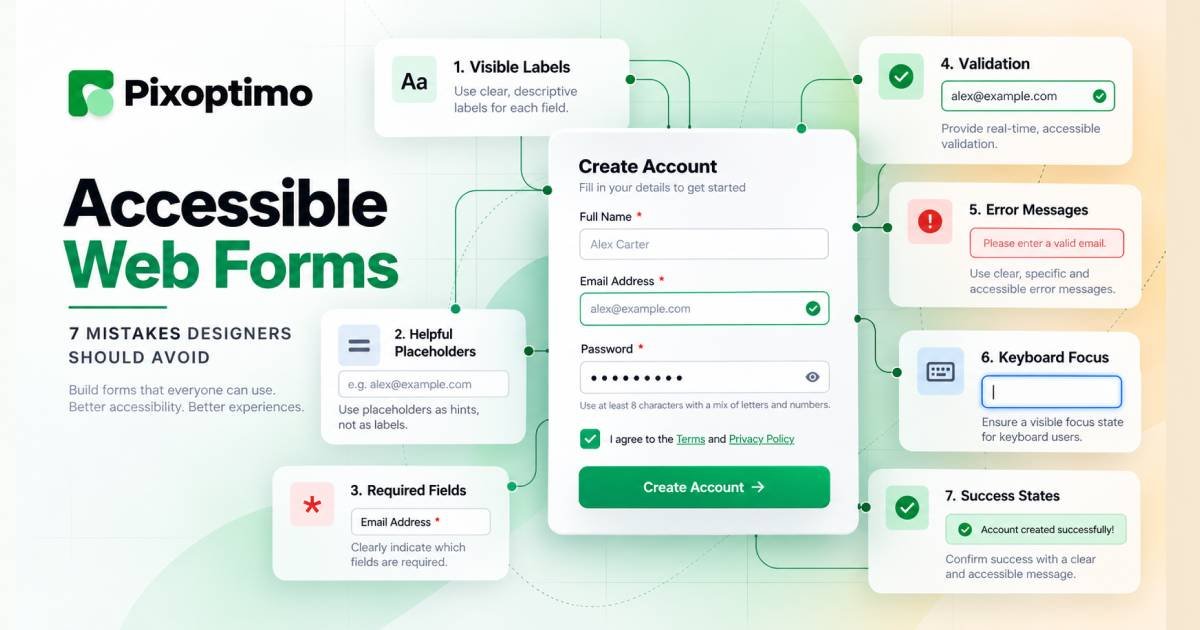
A form can look perfectly polished and still be difficult to use.
The fields line up. The spacing feels balanced. The button has the right color. The validation animation looks great.
Then someone tries to complete it without a mouse.
Or with a screen reader.
Or after zooming the page to 200%.
Or simply after making one small mistake.
Suddenly, the experience changes.
The problem with inaccessible forms is that the failure often isn’t obvious from the design file. A designer can see a clean interface while another person is left wondering which field they are supposed to fill in, what went wrong, or where their keyboard focus disappeared.
That is why accessible web forms should not be treated as a final accessibility checklist.
They are an interaction problem.
Every field asks a question. Every instruction provides context. Every validation message responds to an action. Every focus change tells the user where they are.
When those pieces work together, a form feels straightforward.
When they don’t, even a three-field form can become frustrating.
Here are seven mistakes worth checking before a form goes live.
1. Making the Field Obvious Visually but Not in Code
One of the easiest mistakes is also one of the most fundamental: putting text next to an input without properly connecting the two.
A visual relationship is not necessarily a programmatic relationship.
Consider this:
<p>Email address</p>
<input type="email">
A person looking at the page can probably work out what the field means.
That does not give the input a proper label.
A better pattern is:
<label for="email">Email address</label>
<input id="email" name="email" type="email">
The for value connects the label to the input’s id. This gives assistive technology meaningful information about the control and also makes the visible label clickable. W3C recommends properly associating labels with form controls, with explicit label associations being a strong general approach.
This matters for more than screen readers.
A properly associated label gives people a larger target for activating controls such as checkboxes and radio buttons. That can make a surprisingly big difference on small screens or for people with limited motor precision.
Designer check
When reviewing a form design, don’t only ask:
“Can I see what this field is?”
Ask:
“What will this field be called when technology reads it?”
That question changes the review completely.
2. Using Placeholder Text as the Label
This pattern looks attractive in minimal interfaces:
┌─────────────────────────────┐
│ Email address               │
└─────────────────────────────┘
The words appear inside the field.
The user clicks.
The words disappear.
Now the user has to remember what the field was asking.
That is the fundamental problem with treating a placeholder as a label.
Placeholder text is temporary. A label identifies the field.
W3C specifically warns that placeholder text should not replace labels. It can disappear after input begins, making it harder for people to review what a field represents. Placeholder styling can also create contrast problems.
There is still a useful role for placeholders.
For example:
Email address
[ jane@example.com          ]
The label tells you what the field wants.
The placeholder can demonstrate what a valid entry might look like.
Those are two different jobs.
Better rule
Use:
Label = identity
Helper text = instruction
Placeholder = optional example
Don’t make one piece of disappearing text carry all three responsibilities.
3. Marking Required Fields With Color Alone
Designers often have a visual language for required fields.
A red asterisk.
A red border.
A different label color.
That may work for some users, but color by itself should not carry the entire meaning.
Imagine this form:
Full name *
Email address
Phone number
If the asterisk is the only indication that a field is required, the interface needs to explain what the symbol means.
A short instruction near the beginning of the form can help:
Fields marked "Required" must be completed.Or the label itself can make the requirement explicit.
Email address (required)The important principle is that the requirement should be understandable without relying on visual color or a symbol whose meaning has never been explained.
W3C’s form guidance recommends communicating required and optional input, expected formats and other relevant instructions in ways that are available to users of assistive technology.
There is another useful design question here:
Does this field actually need to be required?
Every mandatory field creates another opportunity for failure.
If the information isn’t necessary to complete the task, consider removing the requirement instead of designing a better warning for it.
4. Waiting Until Submission to Explain Every Mistake
There are forms that behave like this:
- Fill everything out.
- Click Submit.
- Get five red messages.
- Figure out what went wrong.
- Fix everything.
- Submit again.
Technically, the form may work.
The experience is poor.
Validation should help people recover, not simply announce that they failed.
Suppose an email field contains:
alex@The interface may be able to tell that the value is incomplete before the user reaches the final submission.
That doesn’t mean every field needs an aggressive error message while someone is typing.
It means validation should happen at a sensible point in the interaction.
For example, after leaving the field:
Email address
[ alex@                         ]

Please enter a complete email address.
Now the user knows both the problem and the next action.
W3C and WebAIM both emphasize that form errors should be identified clearly and that users should receive useful information for correcting them.
Avoid this
Invalid input.
Prefer something actionable
Enter an email address such as name@example.com.
The second message reduces the amount of thinking the user has to do.
That’s what good error handling should accomplish.
5. Showing an Error Without Connecting It to the Field
There is another subtle failure.
Imagine a long checkout form.
The user presses Submit.
A message appears at the top:
Please correct the errors below.
There are six fields on the page.
Which one is wrong?
The user now has to hunt.
A good error experience creates a relationship between the problem and the control that needs attention.
For example:
Email address
[ alex@ ]

Please enter a complete email address.
The error sits close to the field and explains what needs to change.
For more complex interfaces, the page can also provide an error summary that links users directly to problematic fields.
The goal is not merely to announce that something went wrong.
The goal is to make recovery quick.
This becomes particularly important for keyboard and screen-reader users because visual scanning is not always available in the same way.
WebAIM recommends making errors clear, providing efficient access to the problematic control and giving users enough information to correct the issue.
Think of an error as a navigation problem
Don’t ask only:
“How do we display the error?”
Ask:
“How does the user get from the error to the fix?”
That is the better design question.
6. Losing Keyboard Focus During Validation
This is where accessibility becomes an interaction-design issue rather than a visual one.
Try completing a form using only the keyboard.
Press Tab.
Type something.
Press Tab again.
Continue.
Now submit the form with an error.
Where does focus go?
If the focus indicator disappears, jumps somewhere unexpected, or lands on an unrelated element, the user can lose track of the interface.
Visible focus is especially important for keyboard navigation. Removing the browser’s focus outline without providing a clear replacement can make it difficult to determine which control is currently active.
A simple baseline is:
input:focus-visible,
textarea:focus-visible,
select:focus-visible,
button:focus-visible {
  outline: 3px solid currentColor;
  outline-offset: 3px;
}
The exact visual treatment can match the product’s design system.
The important part is that focus remains obvious.
After an error
If a submission creates an error, the interface should help the user reach the relevant problem.
For a simple form, moving focus to the first invalid field may make sense.
For a complex form, an error summary can give the user an overview before they move into individual fields.
There isn’t one universal focus strategy.
But there should always be a strategy.
7. Treating “Success” as the End of the Story
Accessibility doesn’t stop when the form validates.
Imagine submitting a contact form and seeing a small green message:
Success!
Then nothing else happens.
For a sighted user who notices the message, that may be enough.
For someone using assistive technology, the change may not be communicated in a useful way.
The interface should make the outcome understandable.
For example:
Your message has been sent.

We'll reply to you at alex@example.com.
That’s much more useful than a decorative checkmark appearing beside the button.
Success states can also introduce another problem: where does the user’s attention go?
If the form disappears and a confirmation panel replaces it, the user needs a sensible way to understand that the task is complete.
If the form remains and a status message appears above it, that status needs to be communicated appropriately to assistive technology.
The implementation depends on the interface, but the design principle is simple:
A completed action needs a clear outcome.
A user shouldn’t have to guess whether the form actually worked.
The Form Should Help Prevent Errors, Not Just Report Them
There is a bigger lesson behind all seven mistakes.
Accessibility is often discussed as though the goal is to make an interface usable after something goes wrong.
Good form design goes one step earlier.
It tries to prevent unnecessary mistakes in the first place.
If a date has a common format, explain it.
If an input has a predictable purpose, use appropriate autocomplete information.
If a field doesn’t need to be mandatory, don’t make it mandatory.
If several controls belong together, group them clearly.
If a complex interaction requires additional explanation, provide that explanation before the user gets stuck.
W3C’s guidance on cognitive accessibility specifically recommends reducing unnecessary data entry, clearly identifying requirements, accepting reasonable input variations and helping people correct mistakes.
This is good accessibility.
It is also simply good product design.
A Practical Accessible Form Review
Before shipping a form, run through it without looking at the code first.
Try the keyboard-only test
Put the mouse aside.
Can you:
- Reach every field?
- Tell where focus is?
- Move through fields in a sensible order?
- Operate checkboxes and buttons?
- Submit the form?
- Recover from an error?
If not, the form isn’t finished.
Try the “no memory” test
Start filling the form.
Enter information into several fields.
Then look at the fields again.
Can you still tell what each one means?
If the answer depends on placeholder text that has disappeared, the labels need work.
Try the “one mistake” test
Intentionally enter one incorrect value.
Then submit.
Can you immediately determine:
- What went wrong?
- Where it went wrong?
- Why it went wrong?
- How to fix it?
If any of those answers are unclear, improve the validation experience.
Try the zoom test
Increase browser zoom.
Does the form remain usable?
Do labels still sit clearly with their controls?
Does the error text remain visible?
Does the submit button remain reachable?
Accessibility problems often become easier to see when the interface is no longer viewed at the designer’s default size.
Test with assistive technology
Automated accessibility testing is useful, but it cannot answer every interaction question.
A tool may detect that a label is missing.
It cannot necessarily tell you whether the instructions make sense.
It may detect a technical issue.
It cannot fully judge whether the recovery experience feels understandable.
Manual testing therefore remains an important part of accessible form development.
Designers and Developers Should Review Forms Together
Forms are one of those areas where design and implementation cannot be separated cleanly.
A designer decides:
- what information is requested,
- how requirements are communicated,
- where instructions appear,
- how errors look,
- what the success state communicates.
A developer determines:
- how controls are labeled,
- how relationships are represented in HTML,
- how validation works,
- where focus moves,
- how status changes are communicated,
- how the experience behaves with assistive technology.
Neither side can completely solve the problem alone.
A beautiful design with poor semantics is still inaccessible.
Perfect HTML with a confusing interaction is not a great experience either.
The best result comes when both sides review the entire journey.
Final Thought
A form is a conversation between a website and the person using it.
The label asks a question.
The input provides the answer.
The instructions explain the rules.
Validation responds to mistakes.
Focus tells the user where they are.
The confirmation tells them what happened.
When those pieces are designed independently, forms become surprisingly easy to break.
When they are designed as one continuous interaction, accessibility becomes much more natural.
That is the part worth remembering.
Don’t design the field and then add accessibility.
Don’t build the validation and then think about keyboard users.
Don’t create a success animation and assume everyone will notice it.
Design the whole interaction.
A genuinely accessible web form isn’t one that merely passes a checklist.
It is one that makes the next step understandable, the current step obvious, and recovery possible when something goes wrong.
That is what good form design should have been doing all along.