
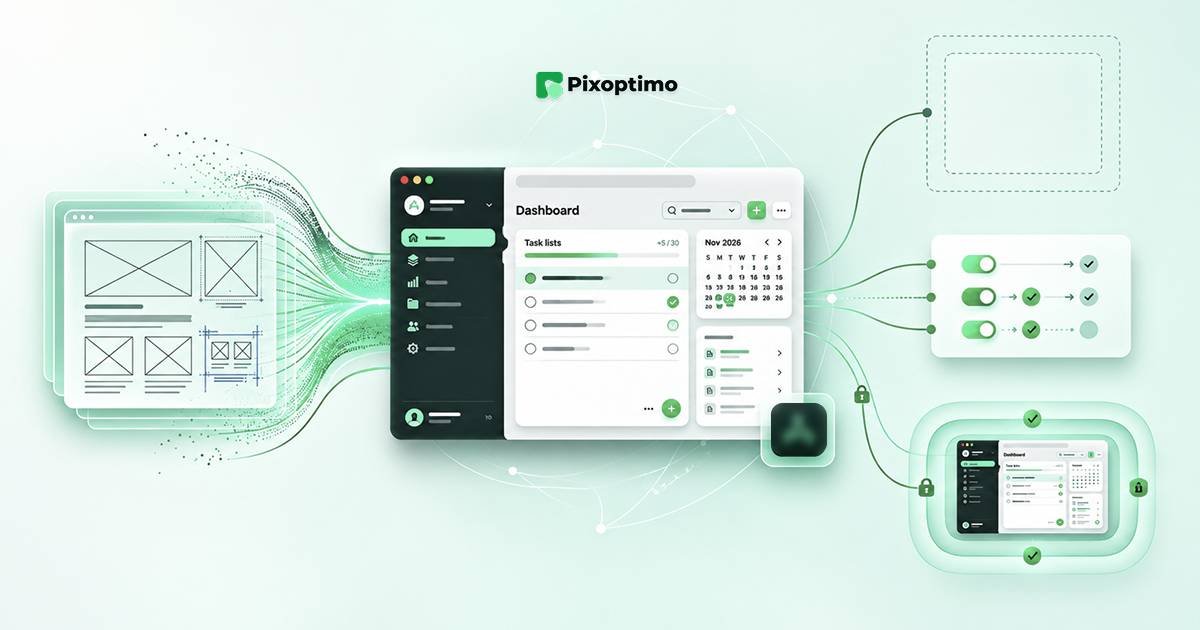
A small tool created with Claude can now have a place on your computer beyond the usual chat window. Anthropic’s Install as app feature gives eligible Claude Artifacts a separate desktop experience on macOS and Windows.
Instead of preparing an installer, building a desktop package or handling application signing, you can install a supported artifact directly through Claude Desktop. The result has its own icon and window, with access to selected desktop features when the required permissions are granted.
This creates interesting possibilities for developers, designers and people who want to build lightweight tools without starting a traditional desktop development project. You could experiment with a personal planner, a project dashboard, a reminder utility or a simple business tool.
There is one important distinction, though: an installed Claude Artifact is not an independent native application. It still relies on Claude Desktop, an internet connection and a permission system that controls its access to your computer.
Here is how the installation experience works, what you can build with it and what to understand before granting an artifact additional access.
Quick Summary
- Anthropic introduced Install as app as a beta feature on November 24, 2026.
- Supported Claude Artifacts can be installed as separate desktop applications on macOS and Windows.
- Installation does not require users to package or sign an application manually.
- Installed artifacts can work with Claude and supported connected apps.
- Three access levels are available: Default, App permissions and Full computer access.
- Optional desktop features include notifications, keyboard shortcuts, floating windows and menu bar or system tray items.
- Full computer access can allow an application to execute programs and read, edit or delete files.
- Changes to an original artifact are reflected in its installed application.
- Permissions must be approved again when an installed app receives an update.
- An internet connection and an active Claude Desktop session are required to open installed artifacts.
- Claude Docs, Slides and Sheets artifacts are not supported for installation.
Understanding Claude Artifacts
Before looking at the installation process, it helps to understand what an artifact actually is.
Claude Artifacts are interactive outputs that Claude can create alongside a conversation. Rather than presenting everything as ordinary chat text, Claude can produce a separate workspace that lets you view, use or modify the result.
Depending on the task, an artifact might be:
- A small web-based application
- A data dashboard
- An interactive chart or visualisation
- A productivity utility
- A single-page website
- A code-driven interface
- A design concept or prototype
For instance, you could describe a personal expense tracker and ask Claude to build an interface for entering transactions and reviewing spending. You could also request a focus timer, an inventory tool or a dashboard for monitoring project progress.
The artifact appears alongside the conversation. You can try its functionality and continue asking Claude to improve the result.
The new installation option adds another way to use these creations. Instead of opening the artifact through its usual Claude interface each time, you can install supported artifacts and launch them from your computer.
What Does Installing an Artifact Actually Give You?
The feature changes the way you access an artifact, rather than turning its underlying project into a conventional desktop software package.
After installation, the artifact gets a separate application window and an entry in your operating system’s application launcher. This makes a small tool easier to open and use without navigating back to the conversation where you created it.
An installed artifact can have:
- A dedicated desktop application icon
- Its own application window
- An entry in the macOS or Windows application launcher
- Access to Claude and supported connected services
- Additional desktop functionality when you approve the relevant permissions
Consider a simple project tracker. You might initially create and test it inside Claude. Once it is ready, installing it gives you a separate way to launch the tracker from your desktop.
The same idea can be applied to tools that benefit from operating-system integration. A reminder utility could request permission to send notifications, while a compact desktop tool might use a menu bar or system tray entry.
However, the application continues to operate within Claude’s environment. Its desktop appearance should not be mistaken for complete independence from Claude or the internet.
Installing a Claude Artifact on Your Computer
The installation process begins with an artifact that you have already created or have permission to use. You do not need to prepare a conventional desktop installer yourself.
1. Check Your Claude Desktop Version
Start by updating Claude Desktop on your computer.
Anthropic’s Help Center specifies version 6.28899.0 or later for artifact installation. The feature is intended for the macOS and Windows desktop applications.
If you cannot find the installation option, check your installed version first. An older desktop application may not expose the feature.
2. Build Something in Claude
Open Claude and describe the application you want it to create.
For example, you might use a prompt like this:
Build a Pomodoro focus timer with a 25-minute work session, a five-minute break, basic task tracking and a clean interface designed for desktop use.
Claude can generate an interactive artifact from the description. You can then request refinements to its appearance, controls and behaviour.
Other suitable starting projects include:
- A daily task planner
- A personal budget tracker
- A project status dashboard
- A basic inventory manager
- A meeting preparation workspace
- A lightweight productivity tool
Keep the first version focused. A small application with a few well-defined functions is easier to test than a large project with many features.
3. Try the Artifact Before Installing It
Do not treat successful generation as proof that the application works correctly.
Open the artifact inside Claude and test its main interactions. If it is a timer, check the countdown and session controls. If it manages tasks, try creating, editing and deleting entries.
Pay attention to broken interactions, confusing controls and unexpected behaviour. Ask Claude to address any problems before moving on.
This step is useful because the installation feature changes how the artifact is launched. It does not automatically validate the quality or reliability of the application itself.
4. Choose the Installation Option
When you are satisfied with the artifact:
- Open it in Claude Desktop.
- Find the artifact’s title menu or use the right-click menu.
- Choose Install as app.
- Confirm by selecting Install.
The option is also available through the artifact’s Share menu.
Follow any confirmation prompts that appear. Once the process finishes, the installed application becomes available through your computer’s application launcher.
You do not need to create another account for the installed artifact. It uses your existing Claude account.
5. Launch the Installed Application
After installation, you can open the artifact independently through the desktop application launcher.
On macOS:
- Open the Applications directory in your home folder.
- Locate the Claude Apps folder.
- Find and launch your installed artifact.
- You can also search for it using Spotlight or the Apps launcher.
- To keep it accessible from the Dock, right-click its icon, open Options and select Keep in Dock.
On Windows:
- Open the Start menu.
- Find the Claude Apps folder.
- Select the artifact you installed.
- You can also use its desktop shortcut if one was created.
There is another way to reach your installed applications: open Claude Desktop, select File, choose Apps and then select the application you want to launch.
Claude Artifact Permissions: Three Levels Explained
Installation is only one part of the experience. The permissions you grant determine which desktop capabilities an artifact can use.
Claude provides three permission levels. They differ considerably, so it is worth understanding them before approving an application—particularly one created and shared by someone else.
Default: Keep Access Limited
Default is the most restrictive of the three options.
An application using this level is limited to functionality that would ordinarily be available to it in a browser. It does not receive additional operating-system capabilities automatically.
This is generally sufficient for projects such as:
- Calculators
- Timers
- Basic dashboards
- Interactive charts
- Simple productivity interfaces
Imagine a task tracker that lets you organise a list of activities but does not need desktop notifications or access to local files. There may be no reason to grant it anything beyond Default permissions.
Starting with the least access necessary is a sensible approach. You can consider additional permissions later if the application’s actual functionality requires them.
App Permissions: Approve Specific Desktop Features
The second level allows an artifact to request particular operating-system capabilities.
Rather than granting broad access to the computer, these requests cover individual features. Depending on the application, they may include:
| Capability | Purpose |
|---|---|
| Notifications | Show alerts while you are using other applications |
| Keyboard shortcuts | Respond to key combinations outside the application’s window |
| Floating windows | Display content above other windows and access mouse cursor position |
| Menu bar or system tray | Add an accessible item to the macOS menu bar or Windows system tray |
Claude presents permission requests individually. You can choose Allow or Don’t allow when a request appears.
For example, a focus timer might need notification access to alert you when a work session finishes. A compact desktop utility might benefit from a menu bar entry so you can reach its controls quickly.
These permissions can make an artifact more convenient to use, but they should still match what the application is supposed to do.
A useful rule is to approve a capability because you need its functionality—not simply because the application asks for it.
Full Computer Access: Understand the Risks
<badge color=”danger”>Use with caution</badge>
Full computer access provides considerably broader capabilities than the other two levels.
With this access, an application can request permission to:
- Execute programs on your computer
- Read files
- Modify existing files
- Delete files
- Use other supported app permissions, unless you or your organisation have disabled them
This can support more advanced workflows. For example, a file organisation utility could help manage documents as part of a specific process.
However, these capabilities also introduce risks. An application with this level of access could execute programs or make changes to files without requesting approval for every individual action.
Anthropic does not review artifacts before installation. That makes the source of an application and the reason for its requested access particularly important.
There are also restrictions on who can receive this permission. For individual plans, Full computer access is limited to applications created by the user. Team and Enterprise plans can also permit applications created by people within the organisation.
For everyday tools, Default or individually approved App permissions are usually a more appropriate starting point. Full access should be considered only when the application genuinely needs it and you trust its creator and behaviour.
Using Notifications and Other Desktop Integrations
The ability to request selected operating-system features is one of the more interesting parts of installing an artifact.
It allows some tools to remain useful beyond their main application window. Here are a few examples of how these capabilities can be used.
Desktop Notifications
An installed artifact can request permission to display notifications.
A reminder tool could alert you when an activity is due. A focus timer could notify you when a session ends, even if you are working in another application.
The application must first obtain notification permission. Installing it does not automatically grant this access.
macOS Menu Bar Integration
On macOS, an artifact can request a menu bar item.
This is useful for small utilities that do not need a full window open all the time. For example, a productivity tool could provide quick access to a timer or a frequently used action from the menu bar.
Windows System Tray Integration
The equivalent desktop convenience on Windows is a system tray item.
An artifact can request permission to add an entry there, giving users a way to reach selected functions without keeping the main application window open.
One behaviour is worth remembering: an application with a menu bar or system tray item may continue running after its main window closes.
To quit it completely:
- macOS: Quit through the Dock or press Cmd+Q while the application is active.
- Windows: Open the system tray item’s menu and select Exit.
Closing the window and quitting the application are therefore not necessarily the same action.
Do Changes to the Original Artifact Update the Installed App?
Yes. The installed application follows changes made to its underlying artifact. You do not have to maintain an entirely separate copy whenever you improve the original.
Suppose you install a project dashboard and later return to Claude to request a new reporting section, updated navigation or a progress indicator. The installed version reflects the changes made to the artifact.
There is a permission consequence, however.
Approval is tied to the current version of the application. When the artifact is updated, Claude requests permission again—even when the changes were made by the original creator.
For example, if the previous version had permission to display notifications, the updated version may ask you to approve notification access again.
This is important when deciding whether to keep an application installed, especially if it handles sensitive information.
Also consider any content that the artifact loads from an external website. That content may change independently, without triggering another permission request from Claude.
For applications used in sensitive workflows, both the artifact updates and its external dependencies deserve attention.
Do Installed Artifacts Count Towards Claude Usage Limits?
Yes. Installing an artifact does not give it a separate Claude usage allowance.
When an application sends requests to Claude, those requests count towards the usage limits of the account or plan being used.
Consider a writing assistant built as an artifact. If it sends a prompt to Claude whenever someone asks for a paragraph to be rewritten, those requests use Claude and count towards the applicable plan limits.
The same applies to AI-powered analysis, response generation and other interactions that rely on Claude.
It helps to distinguish between two types of activity:
- Application-only actions: Interactions that do not require a request to Claude.
- Claude-powered actions: Operations that send requests to Claude and count towards plan usage.
If you intend to use an artifact frequently, think about which operations actually need AI. Not every button, calculation or interface interaction needs to trigger a Claude request.
Installed Claude Artifacts vs Conventional Desktop Software
An installed artifact can look and behave like a desktop application in several ways. That does not make it equivalent to software developed and distributed through a traditional desktop application workflow.
The differences become clearer when you compare how each approach handles installation, updates, connectivity and system access.
| Area | Installed Claude Artifact | Conventional desktop application |
|---|---|---|
| Installation | Installed through Claude Desktop | Commonly distributed through an installer or app store |
| Window | Has a separate desktop window | Has a separate desktop window |
| Application icon | Provided through the installation experience | Defined by the application’s package |
| Updates | Reflects changes to the original artifact | Uses the developer’s update mechanism |
| Claude integration | Uses the user’s Claude account | Depends on how the developer implements AI integration |
| Offline operation | Requires an online Claude session | Depends on the application’s architecture |
| System access | Governed by Claude’s permission controls | Depends on the application and operating-system permissions |
| Distribution | Uses the Claude artifact-sharing experience | Uses the developer’s chosen distribution method |
Progressive Web Apps provide another way to make web experiences accessible from a desktop. However, installing a website through a browser is different from using Claude’s Install as app feature.
Anthropic also distinguishes its installation feature from browser actions such as Add to Dock, Add browser shortcut and Add to Home Screen.
For developers, the distinction is practical. Installed artifacts offer a convenient route to desktop-accessible tools, but they should not automatically be treated as a substitute for a dedicated desktop application built for a specific operating system.
Limitations to Know Before You Start
Install as app is a beta feature, and its availability and capabilities come with several restrictions.
1. Installation Supports macOS and Windows
The installation experience is available through Claude Desktop for macOS and Windows. Linux, the web application and mobile platforms are not supported for artifact installation at launch.
2. You Need an Internet Connection
An installed artifact is not an independent offline application. You must be online and signed in to Claude Desktop to open it.
This matters if you are considering using an artifact as a tool that must remain available without an internet connection.
3. Some Claude Outputs Are Not Eligible
Not every type of Claude-created content can be installed.
Claude Docs, Slides and Sheets artifacts are excluded. Legacy artifacts and certain live artifacts created through Claude Cowork are also outside the supported installation experience.
4. Updates Can Trigger New Permission Requests
Permission approval does not automatically carry over to every future version.
When an installed artifact changes, Claude may ask you to approve its required permissions again. This includes updates made by the person who originally created it.
5. Organisation Policies Can Restrict Availability
Some organisations cannot use the feature. HIPAA-ready organisations and hybrid deployments are excluded.
Team and Enterprise administrators can also manage whether artifact installation and additional permissions are available.
The default settings differ between plans:
- Team: Installation is enabled by default, while Full computer access is disabled by default.
- Enterprise: The feature is disabled until an organisation owner enables it.
If you use Claude through a managed organisation, check its policies before planning a workflow around installed artifacts.
6. Full Computer Access Is Not Available for Every Shared App
The most extensive permission level has additional eligibility restrictions.
Individual users can grant Full computer access only to applications they created themselves. Team and Enterprise environments can also permit applications created by people within the organisation.
This means an artifact shared by an external creator may not qualify for the same level of access.
A Safety Checklist for Shared Claude Artifacts
An application shared through Claude may be useful, but its availability does not establish that it is trustworthy.
Anthropic does not review artifacts before installation. You should therefore evaluate an unfamiliar artifact carefully, particularly when it requests access beyond ordinary browser functionality.
Before installing one, consider the following:
- Know what it does: Understand the purpose of the application and the tasks it is intended to perform.
- Consider the creator: Prefer applications shared by people or organisations you recognise.
- Begin with limited access: Use Default permissions unless additional capabilities are genuinely necessary.
- Question every request: Check whether the requested feature makes sense for the application’s purpose.
- Be careful with file access: Avoid granting permission to execute programs or modify files without a clear reason.
- Recheck after updates: A new version may ask you to approve permissions again.
- Remember external dependencies: Content loaded from another website can change independently of the artifact.
You can review or withdraw permissions after installation.
On macOS, open the application, select its name in the menu bar and choose Permissions.
On Windows, right-click the application’s title bar or press Alt+Space, then select Permissions.
You can also manage access through Claude Desktop: open File, select Apps, choose the relevant application and open Permissions.
One final point is important: removing permission does not reverse changes that an application has already made to your files. Revoking Full computer access can also reload or close the application, so save your work before changing that setting.
Final Thoughts
Claude’s Install as app feature creates a more direct way to use small tools generated through Artifacts. Instead of opening every project through its original conversation, you can give supported creations their own desktop window and launch them from your computer.
That could be useful for designers testing interface concepts, developers experimenting with small utilities or teams creating lightweight internal tools.
The permission model is an important part of the experience. Notifications, shortcuts and system tray integrations can make an application more convenient, while Full computer access introduces capabilities that deserve considerably more scrutiny.
It is equally important to understand the limitations. Installed artifacts still depend on Claude Desktop and an internet connection. They are not automatically equivalent to offline software or conventional native applications.
If you want to explore the feature, begin with a small project. Test its functionality inside Claude, install it with limited permissions and expand its access only when a specific feature requires it.
The most interesting opportunity is the reduced effort involved in experimenting with desktop tools. You can move from an idea to an installable desktop experience without first building a traditional application package.